FREE SHIPPING BOTH WAYS
ON EVERY ORDER!
LIST PRICE:
$45.00

Sorry, this item is currently unavailable.

Adobe Illustrator CS Classroom in a Book
ISBN: 9780321193803 | 0321193806
Edition: 1st
Format: Paperback
Publisher: Adobe Press
Pub. Date: 10/13/2003

Why Rent from Knetbooks?

Because Knetbooks knows college students. Our rental program is designed to save you time and money. Whether you need a textbook for a semester, quarter or even a summer session, we have an option for you. Simply select a rental period, enter your information and your book will be on its way!

Top 5 reasons to order all your textbooks from Knetbooks:

  • We have the lowest prices on thousands of popular textbooks
  • Free shipping both ways on ALL orders
  • Most orders ship within 48 hours
  • Need your book longer than expected? Extending your rental is simple
  • Our customer support team is always here to help
SummaryTable of ContentsAuthor Biography
Appropriate for beginning to intermediate graphic design students using Illustrator. Developed by the software-training experts at Adobe Systems, the Classroom in a Book series offers complete, self-paced lessons for learning the features of Adobe software quickly and easily. Each book includes a CD-ROM with customized full-color files to guide students through the lessons and special projects. Each chapter concludes with a review section to reinforce what students have learned.

How often have you wished you had ac... MORE
Getting Startedp. 1
About Classroom in a Bookp. 1
Prerequisitesp. 1
Installing the programp. 2
Installing the Classroom in a Book fontsp. 2
Copying the Classroom in a Book filesp. 2
Restoring default preferencesp. 2
Additional resourcesp. 4
A Quick Tour of Adobe Illustratorp. 5
Getting started... MORE
Creating a basic blendp. 8
Creating a symbolp. 10
Creating a clipping maskp. 13
Using the align featurep. 15
Using the pathfinder featurep. 16
Creating a clipping maskp. 17
Using the new 3-D effectp. 17
Cloning the crayonp. 20
Changing the color of the crayonp. 20
Applying transparencyp. 21
Creating the crescent shapep. 22
Adding live effectsp. 24
Getting to Know the Work Areap. 29
Getting startedp. 30
Viewing artworkp. 33
Changing the view of artworkp. 36
Using Adobe online servicesp. 46
Review questionsp. 47
Review answersp. 47
Selection Basicsp. 51
Getting startedp. 52
Using the Selection toolp. 52
The Direct Selection toolp. 54
Exploring on your ownp. 62
Review questionsp. 63
Review answersp. 63
Creating Basic Shapesp. 67
Getting startedp. 68
Setting up the documentp. 69
Using basic shape toolsp. 70
Drawing the pencil shapep. 70
Drawing the piece of stationeryp. 76
Drawing with the Rectangular Gird toolp. 77
Decorating the stationery borderp. 81
Tips for drawing polygons, spirals, and starsp. 83
Painting the logop. 84
Copying and scaling shapesp. 87
Review questionsp. 89
Review answersp. 89
Drawing with the Pen toolp. 93
Getting startedp. 94
Creating straight linesp. 97
Creating curved pathsp. 98
Building a curvep. 100
Curves and corner anchor pointsp. 104
Creating the pear illustrationp. 107
Editing curvesp. 117
Finishing the pear illustrationp. 119
Exploring on your ownp. 122
Review questionsp. 125
Review answersp. 126
Paintingp. 129
Getting startedp. 130
Filling with colorp. 131
Stroking with colorp. 134
Building custom swatchesp. 137
Copying paint attributesp. 142
Copying appearance attributesp. 143
Saturating a colorp. 145
Painting with patterns and gradientsp. 145
Painting with a Pattern brushp. 147
Review questionsp. 149
Review answersp. 149
Applying Transparency and Blending Modesp. 153
Getting startedp. 154
Changing the opacity of an objectp. 154
Changing the blending modesp. 156
Isolating the blendingp. 157
Using an opacity maskp. 159
Editing an opacity maskp. 163
Exploring on your ownp. 165
Review questionsp. 166
Review answersp. 166
Working with Layersp. 169
Getting startedp. 170
Creating layersp. 173
Locking layersp. 176
Viewing layersp. 178
Pasting layersp. 180
Creating clipping masksp. 182
Merging layersp. 184
Applying appearance attributes to layersp. 186
Exploring on your ownp. 190
Review questionsp. 191
Review answersp. 191
Transforming Objectsp. 195
Getting startedp. 196
Scaling objectsp. 197
Rotating objectsp. 201
Distorting objectsp. 202
Shearing objectsp. 204
Positioning objects preciselyp. 207
Reflecting objectsp. 209
Changing the perspectivep. 210
Using the Free Transform toolp. 211
Making multiple transformationsp. 213
Exploring on your ownp. 215
Review questionsp. 223
Review answersp. 223
Working with Placement and Order of Objectsp. 227
Getting startedp. 228
Creating custom guidesp. 232
Creating the vector logop. 236
Applying the warp and pathfinder featuresp. 237
Arrangement and object orderp. 240
Putting the logo togetherp. 244
Exploring on your ownp. 245
Review questionsp. 245
Review answersp. 245
Applying Appearance Attributes, Styles, and Effectsp. 249
Getting startedp. 250
Using appearance attributesp. 251
Copying, applying, and removing styles and appearancesp. 263
Saving and printing files with transparency effectsp. 266
Exporting and importing flattening settingsp. 275
Exploring on your ownp. 275
Review questionsp. 277
Review answersp. 277
Working with typep. 281
Getting startedp. 282
Adding type to a documentp. 285
Sampling typep. 285
Changing the character sizep. 286
Reshaping text with an envelopep. 287
Creating columns of typep. 290
Changing character attributes of placed textp. 293
Changing paragraph attributesp. 295
Saving and Using Stylesp. 296
Wrapping type around a graphicp. 298
Typing along a pathp. 299
Creating type outlinesp. 300
Creating type masksp. 302
Saving your file for electronic distributionp. 305
Review questionsp. 307
Review answersp. 307
Blending Shapes and Colorsp. 311
Getting startedp. 312
Creating a gradient fillp. 313
Adjusting the direction of the gradient blendp. 317
Adding colors to a gradientp. 318
Creating smooth-color blendsp. 322
Blending intermediate stepsp. 323
Modifying the blendp. 324
Combining blends with gradientsp. 326
Exploring on your ownp. 328
Review questionsp. 329
Review answersp. 329
Working with Symbolsp. 333
Getting startedp. 334
Creating a symbolp. 335
Using the Symbolism toolsp. 339
Editing symbolsp. 340
Updating a symbolp. 341
Using the Symbols palette as a databasep. 343
Mapping a symbol to 3D artworkp. 344
Exploring on your ownp. 349
Review questionsp. 349
Review answersp. 350
Working with Brushes and Scribblesp. 353
Applying brushes to pathsp. 354
Getting startedp. 354
Using Art brushesp. 355
Using Scatter brushesp. 361
Applying a scatter brush to pathsp. 363
Changing the color attributes of brushesp. 364
Using a fill color with brushesp. 369
Using Calligraphic brushesp. 371
Using Pattern brushesp. 374
Creating brushesp. 377
Applying the Scribble effectp. 383
Exploring on your ownp. 387
Using a brush libraryp. 388
Review questionsp. 388
Review answersp. 389
Creating Airbrush Effectsp. 393
Getting startedp. 394
Setting Smart Guides preferencesp. 395
Painting with the Mesh toolp. 396
Applying colors to the meshp. 399
Highlighting a mesh objectp. 401
Editing mesh pointsp. 402
Reflecting mesh objectsp. 405
Modifying mesh linesp. 406
Warping a meshp. 409
Applying transparency to a meshp. 412
Review questionsp. 416
Review answersp. 416
Using the 3D Effectp. 419
Getting startedp. 420
Creating a banner logo with the Warp effectp. 421
Using Brushes for decorationp. 424
Turning the artwork into symbolsp. 426
Creating the 3D cylinderp. 428
Using the 3D Extrude effectp. 428
Using the 3D Rotate effectp. 441
Exploring on your ownp. 442
Review questionsp. 443
Review answersp. 443
Printing Artwork and Producing Color Separationsp. 447
Printing: An overviewp. 448
About printing devicesp. 449
About colorp. 451
Getting startedp. 452
Color managementp. 453
Printing black-and-white proofsp. 454
Soft-proofing colorsp. 455
Using the Document Info commandp. 456
Creating color separationsp. 457
Working with two-color illustrationsp. 466
Creating a trapp. 470
Overprinting objectsp. 472
Review questionsp. 475
Review answersp. 476
Combining Illustrator Graphics and Photoshop Imagesp. 479
Combining artworkp. 480
Vector versus bitmap graphicsp. 480
Getting startedp. 482
Placing an Adobe Photoshop filep. 483
Duplicating a placed imagep. 485
Adjusting color in a placed imagep. 487
Masking an imagep. 489
Sampling colors in placed imagesp. 494
Replacing a placed imagep. 495
Exporting a layered file to Photoshopp. 496
Exploring on your ownp. 498
Review questionsp. 499
Review answersp. 499
Creating a Web Publicationp. 503
About Web format and compression optionsp. 504
Getting startedp. 507
Slicing artwork for Web pagesp. 509
Exporting flat-color artworkp. 515
Exporting continuous-tone and gradient artworkp. 524
Linking slices to URLsp. 528
Saving your Web page as an HTML file with imagesp. 533
Creating a Flash animation from symbolsp. 535
Exploring on your own with Adobe Photoshopp. 539
Review questionsp. 546
Review answersp. 546
Working with Version Cuep. 549
Indexp. 557
Table of Contents provided by Ingram. All Rights Reserved.

The Adobe Creative Team is made up of designers, writers, and editors who have extensive, real-world knowledge of and expertise in using Adobe products. They work closely with the Adobe product development teams and Adobe's Instructional Communications team to come up with creative, challenging, and visually appealing projects to help both new and more experienced users get up to speed quickly on Adobe software products.

Related Products


  • Adobe Illustrator 9.0 Classroom in a Book
    Adobe Illustrator 9.0 Classroo...
  • Adobe Illustrator CC Classroom in a Book
    Adobe Illustrator CC Classroom...
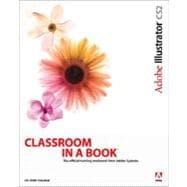
  • Adobe Illustrator CS2 Classroom in a Book
    Adobe Illustrator CS2 Classroo...
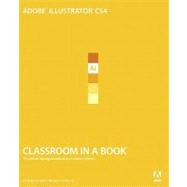
  • Adobe Illustrator CS4 Classroom in a Book
    Adobe Illustrator CS4 Classroo...
  • Adobe Illustrator CS5 Classroom in a Book
    Adobe Illustrator CS5 Classroo...
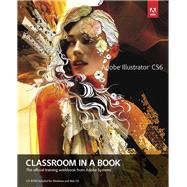
  • Adobe Illustrator CS6 Classroom in a Book
    Adobe Illustrator CS6 Classroo...
  • Adobe® Illustrator® 10 Classroom in a Book
    Adobe® Illustrator® 10 Classro...


Please wait while this item is added to your cart...