FREE SHIPPING BOTH WAYS
ON EVERY ORDER!
LIST PRICE:
$49.99

OUR PRICE:
$27.22

You may extend rentals at any time.


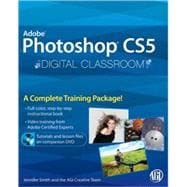
Photoshop CS5 Digital Classroom, (Book and Video Training)
by: Unknown
ISBN: 9780470607770 | 0470607777
Edition: 1st
Format: Paperback
Publisher: Wiley
Pub. Date: 5/24/2010

Why Rent from Knetbooks?

Because Knetbooks knows college students. Our rental program is designed to save you time and money. Whether you need a textbook for a semester, quarter or even a summer session, we have an option for you. Simply select a rental period, enter your information and your book will be on its way!

Top 5 reasons to order all your textbooks from Knetbooks:

  • We have the lowest prices on thousands of popular textbooks
  • Free shipping both ways on ALL orders
  • Most orders ship within 48 hours
  • Need your book longer than expected? Extending your rental is simple
  • Our customer support team is always here to help
SummaryTable of ContentsAuthor Biography

A complete Photoshop training package with book and DVD

Photoshop is the world’s most popular image editing software, with more than four million users worldwide. This full-color book and DVD work together to create an entire Photoshop training class that photographers, Web designers, and graphic designers can complete at their own pace.

Thirteen lessons cover the features and capabilities of the newest version of Photoshop while teaching all the essential skills.

-Photoshop is the image editing software prefe... MORE

-Each of the 13 lessons developed by Adobe certified instructors includes step by step instructions, lesson files, and video tutorials on the DVD

-Covers Adobe Bridge, Camera RAW, masks and layers, painting and retouching, selections and layers, and more, taking you from the basics through intermediate level skills

Photoshop Digital Classroom allows you to learn Photoshop from the experts who create official Adobe training materials, and do it at your own speed.


Photoshop CS5 is included with the Creative Suite 5.5 bundle. This book covers the version of Photoshop that ships with both Creative Suite 5 and Creative Suite 5.5. Photoshop is the world’s most popular image-editing software, with more than four million users worldwide. This full-color book with video tutorials works together to create an entire Photoshop training which photographers, Web designers, and graphic designers can complete at their own pace. Fourteen lessons cover the features and capabilities of the newest version of Photoshop while teaching all the essential skills.
  • Photoshop is the image-editing software preferred by professional photographers and designers around the world; the latest version includes new functionality and enhanced tools
  • Each of the 14 lessons developed by Adobe certified instructors includes step-by-step instructions, lesson files, and video tutorials
  • Covers Adobe Bridge, Camera RAW, masks and layers, painting and retouching, selections and layers, and more, taking you from the basics through intermediate-level skills

Photoshop CS5 Digital Classroom allows you to learn Photoshop from the experts who create official Adobe training materials, and do it at your own speed.

Note: DVD and other supplementary materials are not included as part of eBook file. These materials are available for download upon purchase.

Starting Up
About Photoshop Digital Classroom
Prerequisites
Adobe Photoshop CS5 versions
System requirements
Starting Adobe Photoshop CS5
Resetting Adobe Photoshop CS5 preferences
A note about color warnings
Loading lesson files
Working with the video tutorials
Setting up fo... MORE
Viewing the video tutorials with the Adobe Flash Player
Additional resources
Exploring Photoshop
Starting up
Taking a look at the fi nal project
Creating a panorama from three images
Cropping your image
Adding a selection to your image
Fading one image into another
Using the new Content-Aware feature
Using the improved selection features
Refi ning your selection
Adding a Type layer
Adding the Vertical text
Making some waves using the Puppet Warp feature
Getting to Know the Workspace
Opening an existing document in Adobe Bridge Mini Bridge
Discovering the Tools panel
Accessing Tools and their options
Hidden tools
Navigating the image area
Using the Zoom tool
Using the Hand tool
Tabbed windows
Maximizing productivity with screen modes
Using panels
Putting the panel system to use
Choosing other panels
Expanding your panels
Customizing your panels
Self study
Review
Using Adobe Bridge
What is Adobe Bridge?
Navigating through Bridge
Using folders in Adobe Bridge
Making a Favorite
Creating and locating metadata
Using keywords
Creating a Metadata Template
Opening a fi le from Adobe Bridge
Searching for fi les using Adobe Bridge
Searching by name or keyword
Using the Filter panel
Saving a Collection
Automation tools in Adobe Bridge
Batch renaming your files
Automated tools for Photoshop
Saving or uploading your Web Gallery
Automated tools for Photoshop
Changing the view
Self study
Review
The Basics of Working with Photoshop
Starting up
A look at the fi nished project
Opening an existing document
Understanding document settings
Viewing an image's size and resolution
Combining the images
Using Copy and Paste
Dragging and dropping to copy an image
Transforming and editing combined images
Changing the size of a placed image
Removing a background
Understanding the stacking order of layers
Refining the edges of copied images
Adding text
Saving files
Understanding file formats
Choosing a file format
Saving a JPEG file
Saving for print
Changing the color settings
Adjusting image size
Saving a Photoshop PDF file
Self study
Review
Making the Best Selections
The importance of a good selection
Using the Marquee tools
Creating a square selection
Creating a selection from a center point
Changing a selection into a layer
Working with the Magic Wand tool
The Lasso tool
Adding to and subtracting from selections
Using the Quick Selection tool
Understanding the Refine Selection Edge feature
Making difficult selections with the Refi ne Edge feature
Using Quick Mask
Saving selections
Copying and pasting a selection
Using the Pen tool for selections
Using the Pen tool to select an area of an image
More Pen tool selection techniques
Converting a path to a selection
Self study
Review
Painting and Retouching
Starting up
Setting up your color settings
Color primer
Understanding color gamut
The RGB color model
The CMYK color model
Working in the RGB mode
Editing color settings
Selecting colors
Starting to paint
Using the Color panel
Using the Brush tool
Changing opacity
Save time-learn the shortcuts
Using the New Brushes
Using the Airbrush feature
Creating a Border using the Bristle brushes
Applying color to an image
Changing blending modes
The Eyedropper tool
Retouching images
Using the Clone Stamp tool
Repairing fold lines
The History panel
The Spot Healing Brush
The Healing Brush
Using the Patch tool
Using the Clone Source panel
Cloning from another source
Self study
Review
Creating a Good Image
Starting up
Choosing your color settings
Opening the file
Why you should work in RGB
Reading a histogram
Making the Curve adjustment
Defi ning the highlight and shadow
Locating the White and Black Point
Inputting the white and black point values
Adjusting the midtones
Setting the neutral
Sharpening your image
Comparing your image with the original
Taking care of red eye
Using the Camera Raw plug-in
Using Camera Raw controls
Saving a DNG file
Reopening a DNG file
Self study
Review
Getting to Know Layers
Starting up
Discovering layers
The Layers panel
Getting a handle on layers
Creating a new blank file
Naming your layer
Selecting layers
Tips for selecting layers
Moving layers
Changing the visibility of a layer
Using masks in a layer
Preserve transparency
Creating a composition
Moving images in from other documents
Creating a layer mask
Editing the layer mask
Cloning layers
Aligning and distributing layers
Applying filters to layers
Creating a type layer
Applying a layer style
Creating a clipping mask
Self study
Review
Taking Layers to the Max
Starting up
Making color changes using adjustment layers
Refining the adjustment layer mask
Adjusting the Hue/Saturation layer
Adding a pattern fill layer
Defi ning the pattern
Applying the pattern
Using the new Black & White adjustment layer
Adding a tint
Applying a gradient to the adjustment layer
Layer styles
Creating the text layer
Applying the Outer Glow layer style
Applying the Bevel and Emboss layer style
Changing the shading
Changing the fill opacity
Saving the style
Accessing the style
Self study
Review
Getting Smart in Photoshop
Starting up
Creating a composition using Smart Objects
Opening an image as a Smart Object
Converting a layer to a Smart Object
Placing a Smart Object
Editing a Smart Object
Editing the contents of a Smart Object
Modifying multiple Smart Object layers
Replacing the contents of a Smart Object layer
Working with Smart Filters
Modifying a Smart Filter
Self study
Creating multiple Smart Objects
Working with Illustrator files
Review
Using Adobe Photoshop Filters
Starting up
Filter basics
Starting to use filters
Using the Clouds filter
Using the Filter Gallery
Applying fi lters in the Gallery
Taking advantage of Smart Filters
Applying a Smart Filter
Smart Filter options
Enabling and disabling effects
Using a fi lter eff ects mask
Using the Vanishing Point fi lter
Building your own perspective planes
Building an attached plane
Self study
Review
Creating Images for Web and Video
Starting up
Viewing the completed file
Changing your units of measurement
Creating the web page
Adding the Text
Adding Style to the text
Creating the text for the links
Positioning and distribution of text
Creating slices
Slicing it up
Selecting and combining slices
Applying attributes to your slices
Using Save For Web & Devices
Optimizing the image slices
Saving fi les for video
Creating animation
Working in Frame mode
Saving an animated GIF
Creating animation for video
Working in Timeline mode
Self study
Review
Introducing 3D
Starting up
Creating a 3D object
Getting an image ready for 3D
Wrapping the image around a soda can
Adjusting the lighting
Animating the soda can
Testing your animation
Using the Repoussé feature to create 3D Text
Rasterizing your 3D images
Self study
Review
Adobe Photoshop CS5 New Features
Puppet Warp
Turn 2D objects into 3D using Repoussé
Content-Aware r etouching
Selections made easier
Table of Contents provided by Publisher. All Rights Reserved.
Jennifer Smith is a noted expert in digital design for Web, interactive, and print. She has developed training and communication projects for many Fortune 500 companies, including Microsoft and Adobe Systems. She is the author of more than one dozen books on design software, and is co-founder of American Graphics Institute (www.agitraining.com).


Please wait while this item is added to your cart...