FREE SHIPPING BOTH WAYS
ON EVERY ORDER!
LIST PRICE:
$44.99

Sorry, this item is currently unavailable.

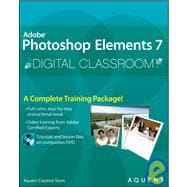
Adobe Photoshop Elements 7 Digital Classroom, (Book and Video Training)
by: Unknown
ISBN: 9780470410912 | 0470410914
Edition: 1st
Format: Paperback
Publisher: Wiley
Pub. Date: 3/30/2009

Why Rent from Knetbooks?

Because Knetbooks knows college students. Our rental program is designed to save you time and money. Whether you need a textbook for a semester, quarter or even a summer session, we have an option for you. Simply select a rental period, enter your information and your book will be on its way!

Top 5 reasons to order all your textbooks from Knetbooks:

  • We have the lowest prices on thousands of popular textbooks
  • Free shipping both ways on ALL orders
  • Most orders ship within 48 hours
  • Need your book longer than expected? Extending your rental is simple
  • Our customer support team is always here to help
SummaryTable of ContentsAuthor Biography
You have a personal tutor in the Digital ClassroomIf you want expert instruction that fits into your schedule, Digital Classroom delivers. Adobe Certified Experts guide you through 13 lessons, helping you learn essential Photoshop Elements 7 skills at your own speed. Full-color, step-by-step instructions in the book are enhanced with video tutorials on the DVD. With Digital Classroom, you have your own private instructor showing you the easiest way to learn Photoshop Elements 7.Download images from your digital camera into Photoshop ElementsEdi... MORE
Starting Up
About Digital Classroom
Prerequisites
System requirements
Starting Adobe Photoshop Elements 7
Loading lesson files
Managing catalogs
Creating a new catalog
Switching Catalogs
Reconnecting to missing files
Reconnect missing files window
W... MORE
Setting up for viewing the video tutorials
Viewing the video tutorials
Additional resources
Importing your Photos into Adobe Photoshop Elements
Starting up
How Photoshop Elements works
The welcome screen
Getting photos into the Organizer using the Photo Downloader
Getting photos from a camera or card reader
The Photo Downloader
Get photos from a scanner
Get photos and videos by searching
Setting a Watch folder
Adding fi les and folders to the Organizer
Getting a still image from a video frame
Workspaces
Organizer basics
How to get help
Photoshop help
Support Center
The Inspiration Browser
Self study
Review
Organizing Your Photos
Starting up
Understanding the Organizer workspace
Photo Browser
Options Bar
Timeline
Properties
Albums
Keyword Tags
Analyzing photos in the Organizer
Rotating photos
Hiding photos
Reviewing photos
Compare photos side by side
Stacks
Organizing using albums
Creating a new album
Creating album groups
Creating a Smart Album
Adding ratings
Adding keywords and categories
Finding your photos
Find photos by star rating
Find photos by keyword
Self study
Review
Fixing Common Photographic Problems
Starting up
Welcome screen
Understanding the Editor workspace
The Project Bin
The Palette Bin
Editing modes: Full, Quick, and Guided
Using Quick Fix
Using Auto Smart Fix
Auto Levels
Auto Contrast
Correcting color automatically
Comparing images in Full Edit View
Using the Navigator
The Guided Edit mode
Fixing an underexposed or dark image
Fixing an overexposed or light image
Using Full Edit mode
Removing a color cast
Correcting skin tone
The Tools palette
Using tools
Red Eye Removal tool
Whitening teeth
Enhancing blue skies
Sharpening
Cropping images
Rotating images
Resizing images
Self study
Review
Adjusting Exposure
Starting up
Welcome screen
Understanding exposure
Exposure adjustments with blending modes
Improving underexposed images
Improving faded or overexposed images
Making adjustments manually
Adjusting brightness and contrast manually
Adjusting shadows and highlights manually
Making tonal adjustments using Levels
Histogram
Making tonal adjustments using Curves
Comparing images in Full Edit view
Using adjustment layers
Correcting selected parts of an image
Hue/Saturation adjustments
Working with selections
Using the Quick Selection tool
Saving selections
Moving selections to a new layer
Self study
Review
Adjusting Color
Starting up
Welcome screen
Understanding color
HSB color
About image modes
Bitmap mode
Grayscale mode
Indexed Color mode
Switching image modes
Comparing methods of adjusting color
Understanding Guided Edit
Understanding Quick Fix
Understanding Full Edit
Adjusting tonal range in Full Edit
Making a duplicate of a file
Restoring shadow and highlight detail
Correcting color in Full Edit
Correcting color casts using Color Variations
Removing a color cast using Levels
Adjusting color curves in an image
Adjusting color saturation and hue
Adjusting saturation in specifi c areas
Making selections
The importance of selections
About the selection tools
Using the Selection Brush tool
Add to or subtract from a selection
Smoothing selection edges with anti-aliasing and feathering
Blur the edges of a selection by feathering
Saving selections
Modifying a new selection with a saved selectio
Inverting a selection
Converting to Black and White
Adding color to areas of an image
Saving and exporting images
About saving images and fi le formats
Self study
Review
Sharing Your Photos
Starting up
Welcome screen
Sharing photos
Creating an online album
Sharing options for online albums
Stop sharing an online album
Sharing photos by e-mail
Attaching a photo to an e-mail
Sending a photo using Photo Mail
Setting up Adobe E-mail Service
Using the Quick Share palette
Sharing photos using the Quick Share palette
Sharing photos using online services
Ordering prints
Ordering a printed photo book
Printing photos
Printing photos in the Organizer
Adding photos using the Print Photos dialog box
Printing a contact sheet
Printing a picture package
Setting page and printer options
Specifying measurement units for printing
Backing up and synchronizing files
Backing up and synchronizing files to Photoshop.com
About synchronized albums on Photoshop.com
Starting backup or synchronization
Stopping and restarting backup or synchronization
Exporting photos
Self study
Review
Working with Type
Starting up
Welcome screen
Placing text on a layer
Formatting a text layer
Editing a text layer
Making cartoon bubbles
Adding text over the cartoon bubble
Adding eff ects to type
Adding text to multiple images
Warping type
Adding a layer style to type
Creating an animation with text
Adding a stroke
Getting the layers ready for animating
Time to animate
Self study
Review
Photo Retouching: Secrets of the Pros
Starting up
Working with what you have
Using the histogram
Working over the image
Improving your image
Brushing on corrections
Self study
Review
The Art of Illusion: Photo Composites
Starting up
Welcome screen
What is a photo composite?
Understanding layers
Working with layers
Creating a new blank file
Creating a type layer
Combining images
About the Layers palette
Editing layers
Converting the Background layer into a regular layer
Selecting a layer
Showing or hiding a layer
Changing the stacking order of layers
Locking or unlocking a layer
Deleting a layer
Using opacity and blending modes
About opacity and blending options in layers
Specifying the opacity of a layer
Specifying a blending mode for a layer
Using the Magic Extractor
Flattening an image
Completing the composite
Working with clipping groups
About layer clipping groups
Creating a clipping group
Using Layer styles
Working with layer styles
Hiding or showing all layer styles in an image
Change the scale of a layer style
Copying style settings between layers
Removing a layer style
Self study
Review
Making Photoshop Elements Creations
Starting up
Creating a panorama
Creating a slide show
Adding text to your slide show
Adding graphics
Applying transitions
Panning and zooming
Reordering slides
Setting the slide order
Drag and drop on the storyboard
Quick Reorder menu
Working with audio
Adding audio
Adding narration
Choosing an output option
Save as a file
Burn to disk
Send to TV
Creating a photo calendar
Self study
Review
Photoshop Elements for Digital Photographers
Starting up
Working with Camera Raw fi les
Understanding the Camera Raw dialog box
Using the Camera Raw dialog box
Saving a DNG file
Vignetting a photo
The basics of filters
Sharpening an image with Unsharp Mask
Using Undo History for comparisons
Using the Blur fi lter to create depth of field
Self study
Review
Photoshop Elements for Artists
Starting up
Creating a new document from scratch
Using brushes to add style to your work
Creating texture with brushes and gradients
The Impressionist brush
Using shapes creatively
Working with patterns
Creating patterns
Applying patterns
Scrapbooking made easier
Creating a texture
Creating a text effect
Adding text to the background
Add images and create a border
Self study
Review
Creating Web and Video Graphics
Starting up
The diff erences between print and the screen
Resolution and color for the Web and video
Preparing images for the Web
Web image formats
Saving fi les for the Web
Preparing images for video
Safe margins
Saving fi les for video
Self study
Review
Appendices
Tools
Keyboard Shortcuts
Understanding Digital Files
Understanding Resolution
Understanding Color Modes & Bit Depth
Understanding File Format
Table of Contents provided by Publisher. All Rights Reserved.
The Aquent Creative Team consists of Adobe Certified Instructors who create and deliver training programs for creative, marketing, and communications professionals at Aquent Graphics Institute. They have developed many of Adobe's official training books and technical training programs for Adobe's employees.


Please wait while this item is added to your cart...