FREE SHIPPING BOTH WAYS
ON EVERY ORDER!
LIST PRICE:
$24.99

OUR PRICE:
$19.79

You may extend rentals at any time.


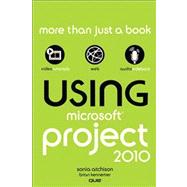
Using Microsoft Project 2010

ISBN: 9780789742957 | 0789742950
Edition: 1st
Format: Paperback
Publisher: Que
Pub. Date: 1/1/2011

Why Rent from Knetbooks?

Because Knetbooks knows college students. Our rental program is designed to save you time and money. Whether you need a textbook for a semester, quarter or even a summer session, we have an option for you. Simply select a rental period, enter your information and your book will be on its way!

Top 5 reasons to order all your textbooks from Knetbooks:

  • We have the lowest prices on thousands of popular textbooks
  • Free shipping both ways on ALL orders
  • Most orders ship within 48 hours
  • Need your book longer than expected? Extending your rental is simple
  • Our customer support team is always here to help
SummaryTable of ContentsAuthor Biography
Using Microsoft Project 2010is a customized, media-rich learning experience designed to help new users master Microsoft Project 2010 system quickly, and get the most out of it, fast! It starts with a concise, friendly, straight-to-the-point guide to Microsoft Project 2010 by QuantumPM, one of the world's most experienced Project training and consulting organizations. This exceptional book is fully integrated with an unprecedented collection of online learning resources: online video, screencasts, podcasts, and additional web content, all design... MORE
Introductionp. 1
How This Book Is Organizedp. 2
Using This Bookp. 2
Special Featuresp. 3
About the Using Web Editionp. 3
Introduction to Managing Projects with Microsoft Project 2010p. 4
What Microsoft Project 2010 Can Do for Youp. 4
What Version of Project 2010 Do You Need?p. 6
Laying a Foundationp. 6
... MOREp. 7
Taskp. 7
Resourcep. 7
Assignmentp. 7
What's New in Project 2010?p. 7
Updated User Interfacep. 7
Manually Scheduled Tasksp. 9
Team Planner Viewp. 9
Timelinep. 10
New Table Customizationp. 11
SharePoint Collaborationp. 12
Navigating Project 2010p. 14
Using the Ribbonp. 14
Using the Timelinep. 15
Share the Timeline with Othersp. 16
Understanding Project Viewsp. 16
What Views Are Available in Project 2010?p. 16
Working with Project Viewsp. 36
Grouping Data in a Viewp. 36
Sorting Data in a Viewp. 38
Filtering Data in a Viewp. 40
Highlighting Data in a Viewp. 41
Displaying Two Views at Oncep. 43
Starting a Projectp. 45
Setting Up a Projectp. 45
Creating a New Projectp. 45
Saving a Projectp. 47
Setting Project Properties and Optionsp. 49
Setting Project Propertiesp. 49
Setting Project Optionsp. 50
Choosing a Project Start or Finish Datep. 51
Setting Up Your Project's Calendarsp. 52
Modifying an Existing Base Calendarp. 53
Changing a Working Day to a Nonworking Dayp. 54
Changing a Nonworking Day to a Working Dayp. 55
Changing Default Working Timesp. 56
Changing Working Times for a Specific Time Periodp. 57
Creating a New Base Calendarp. 57
Setting Up Your Project's Calendarp. 59
How Does Project 2010 Schedule Tasks?p. 60
Scheduling Methods in Project 2010p. 60
What Factors Does the Project Scheduling Engine Consider?p. 61
Which Scheduling Method Should I Use?p. 62
Working with Tasksp. 65
Understanding Task Typesp. 65
Fixed Unitsp. 66
Fixed Workp. 66
Fixed Durationp. 67
Adding Tasks to Your Projectp. 67
Adding a New Taskp. 67
Setting a Task Calendarp. 70
Indenting and Outdenting Tasksp. 71
Setting Up Task Dependenciesp. 72
Adding Dependencies Between Tasksp. 74
Creating a Work Breakdown Structure (WBS)p. 76
Setting Your Project's WBS Code Structurep. 78
Working with Resourcesp. 82
Understanding Resource Types and Other Factorsp. 82
Adding Resources to Your Projectp. 84
Adjusting Resources Calendarsp. 86
Assigning Resources to Tasksp. 87
Assigning a Resource Using the Task Information Dialog Boxp. 87
Assigning a Work Resource Using the Team Planner Viewp. 89
Editing an Existing Resource Assignmentp. 89
Splitting a Task to Create a Gap in Workp. 90
Fine-Tuning a Resource's Work Schedule for a Taskp. 91
Assigning Remaining Work on a Task to Another Resourcep. 92
Accounting for Project Costsp. 94
Understanding Types of Costsp. 94
Creating a Budget for Your Projectp. 95
Creating and Assigning Budget Resourcesp. 95
Adding Values to Budget Resourcesp. 98
Pairing Resources with Budgetsp. 98
Comparing Actual Cost and Work Values with the Project Budgetp. 100
Accounting for Overtime Spent on Project Tasksp. 102
Planning for Overtime Work and Costsp. 102
Recording Actual Overtime Work and Costsp. 103
Capturing Project Progressp. 106
Baselining Your Projectp. 106
Gathering Status Updates from Resourcesp. 108
Actual Start, Percent Work Complete, Remaining Workp. 109
Actual Work Per Day, Remaining Work, Expected Finish Datep. 116
Assessing the Impacts of Updatesp. 119
Sharing Your Project with Othersp. 121
Reporting on Your Projectp. 121
Generating and Customizing a Visual Reportp. 123
Generating and Customizing a Basic Reportp. 126
Sharing Data with Othersp. 131
Copying the Timelinep. 132
Exporting Data to Excelp. 132
Taking a Picture of Your Project Datap. 133
Saving the Project As a PDF or XPS Filep. 134
Collaborating with Others on Your Projectp. 135
Customizing Project 2010p. 137
Creating Custom Fieldsp. 137
Adding and Removing Columns in a Viewp. 140
Adding a Column to a Viewp. 141
Hiding a Column in a Viewp. 142
Saving a Set of Columns as a Tablep. 143
Creating and Editing Viewsp. 145
Understanding Project Optionsp. 149
General Project Optionsp. 150
User Interface Optionsp. 150
Project Viewp. 151
Personalize Your Copy of Microsoft Officep. 153
Display Optionsp. 153
Calendarp. 154
Currency Options for This Projectp. 154
Show Indicators and Options Buttons Forp. 156
Show These Elementsp. 156
Schedule Optionsp. 156
Calendar Options for This Projectp. 157
Schedulep. 159
Scheduling Options for This Projectp. 160
Schedule Alerts Optionsp. 162
Calculationp. 163
Calculation Options for This Projectp. 163
Proofing Optionsp. 165
AutoCorrect Optionsp. 165
When Correcting Spelling in Microsoft Office Programsp. 166
When Correcting Spelling in Projectp. 166
Save Optionsp. 167
Save Projectsp. 167
Save Templatesp. 168
Cachep. 168
Language Optionsp. 169
Advanced Optionsp. 169
Generalp. 170
Project Web Appp. 172
Planning Wizardp. 172
General Options for This Projectp. 172
Editp. 174
Displayp. 174
Display Options for This Projectp. 177
Cross Project Linking Options for This Projectp. 179
Earned Value Options for This Projectp. 180
Calculation Options for This Projectp. 180
Customize Ribbon Optionsp. 182
Customize the Ribbonp. 182
Quick Access Toolbar Optionsp. 184
Customize the Quick Access Toolbarp. 186
Add-Ins Optionsp. 186
Trust Center Optionsp. 187
Dealing with Problemsp. 189
Problem: One of My Resources Is Overallocatedp. 189
Problem: My Schedule Goes Longer Than My Deadlinep. 193
Problem: My Costs Are Exceeding My Budgetp. 195
Assigning Work to Fewer Peoplep. 197
Cutting Back on What Needs to Get Donep. 197
Trimming Budget Amountsp. 197
Indexp. 198
Table of Contents provided by Ingram. All Rights Reserved.
Sonia Atchison has been working with Microsoft Project since 1999. In 2006, she joined the writing team at Microsoft that produces end-user Help content and videos for Project and Project Server, planning and writing content for the 2007 and 2010 releases. Brian Kennemer has been helping people understand and work with Microsoft Project since 1998. He has worked at Microsoft, where he specialized in Project Server deployments and was a member of the Enterprise Project Management Center of Excellence. He currently does Project Server consulting at for Project Technology, Inc., a Microsoft partner that specializes in Earned Value Management System products that work with Project and Project Server. He lives in the forests north of Seattle with his wife, Alicia, and his children, Riley, Jesse, and Alivia.


Please wait while this item is added to your cart...