FREE SHIPPING BOTH WAYS
ON EVERY ORDER!
LIST PRICE:
$126.95

Sorry, this item is currently unavailable.

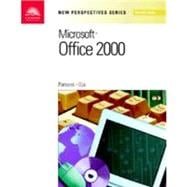
New Perspectives on Microsoft Office 2000: Second Course

ISBN: 9780760064337 | 0760064334
Edition: 1st
Format: Paperback
Publisher: Course Technology
Pub. Date: 10/29/1999

Why Rent from Knetbooks?

Because Knetbooks knows college students. Our rental program is designed to save you time and money. Whether you need a textbook for a semester, quarter or even a summer session, we have an option for you. Simply select a rental period, enter your information and your book will be on its way!

Top 5 reasons to order all your textbooks from Knetbooks:

  • We have the lowest prices on thousands of popular textbooks
  • Free shipping both ways on ALL orders
  • Most orders ship within 48 hours
  • Need your book longer than expected? Extending your rental is simple
  • Our customer support team is always here to help
SummaryTable of Contents
Part of the New Perspectives Series, this text offers a case-based, problem solving approach to learning the more advanced features of the Microsoft Office 2000 Premium package.
Prefaceiii
Tutorial Tipsviii
Microsoft Office 2000 2nd Course---Level II Tutorials1(1)
Microsoft Word 2000 Level II Tutorials1(1)
Read this Before y... MORE
2(1)
Creating Styles, Outlines, Tables, and Tables of Contents
3(1)
Writing a Business Plan for EstimaTech
Session 5.1
4(17)
Planning the Document
4(1)
Creating a New Folder
4(1)
Using the Thesaurus
5(1)
Choosing Fonts
6(3)
Using Styles
9(1)
Using a Word Template
10(1)
Applying Styles
11(1)
Modifying a Predefined Style
12(2)
Defining New Styles with the Style Command
14(4)
Creating a New Template
18(3)
Session 5.1 Quick Check
21(1)
Session 5.2
21(9)
Creating and Editing an Outline
21(2)
Moving Headings Up and Down in an Outline
23(1)
Promoting and Demoting Headings in an Outline
23(1)
Printing the Outline
24(1)
Hyphenating a Document
25(2)
Adding Footnotes and Endnotes
27(3)
Session 5.2 Quick Check
30(1)
Session 5.3
30(1)
Positioning the Insertion Point with Click and Type
30(2)
Inserting the Current Date
32(1)
Highlighting Text with Color
33(1)
Changing Character and Paragraph Spacing
34(1)
Adjusting Spacing between Characters
34(2)
Adjusting Spacing between Paragraphs
36(2)
Creating a Table of Contents
38(2)
Browsing by Heading
40(3)
Session 5.3 Quick Check
43(1)
Review Assignments
43(2)
Case Problems
45(5)
Quick Check Answers
50
Creating Form Letters and Mailing Labels
1(1)
Writing a Sales Letter for The Pet Shoppe
Session 6.1
2(15)
Planning the Form Letter
2(1)
The Merge Process
2(2)
Mail Merge Fields
4(1)
Data Fields and Records
5(1)
Creating a Main Document
6(2)
Creating a Data Source
8(1)
Attaching the Data Source and Creating the Header Row
9(3)
Entering Data into a Data Source
12(5)
Session 6.1 Quick Check
17(1)
Session 6.2
17(14)
Editing a Main Document
17(2)
Inserting Merge Fields
19(4)
Merging the Main Document and Data Source
23(3)
Sorting Records
26(2)
Selecting Records to Merge
28(3)
Session 6.2 Quick Check
31(1)
Session 6.3
31(1)
Creating Mailing Labels
31(5)
Creating a Telephone List
36(2)
Session 6.3 Quick Check
38(1)
Review Assignments
39(2)
Case Problems
41(4)
Quick Check Answers
45
Integrating Word with Other Programs and with the World Wide Web
1(1)
Writing a Proposal to Open a New Branch of Family Style, Inc.
Session 7.1
2(18)
Planning the Document
2(1)
Integrating Objects from Other Programs
3(1)
Embedding
3(1)
Linking
4(1)
Choosing between Embedding and Linking
5(1)
Embedding an Excel Worksheet
6(2)
Centering the Embedded Worksheet
8(1)
Modifying the Embedded Worksheet
9(3)
Linking an Excel Chart
12(2)
Modifying the Linked Chart
14(3)
Updating the Link
17(3)
Session 7.1 Quick Check
20(1)
Session 7.2
20(12)
Creating and Navigating Hyperlinks
20(1)
Inserting a Hyperlink to a Bookmark in the Same Document
21(3)
Navigating Hyperlinks and the Web Toolbar
24(1)
Creating Hyperlinks to Other Documents
25(2)
Viewing a Document in Web Layout View
27(2)
Improving the Appearance of an Online Document
29(1)
Animating Text
29(1)
Applying a Textured Background
30(1)
Session 7.2 Quick Check
31(1)
Session 7.3
32(1)
Publishing Documents on the World Wide Web
32(1)
Saving a Word Document as a Web Page
32(3)
Formatting a Web Page
35(1)
Moving and Editing Text and Graphics
36(1)
Inserting Horizontal Lines
37(2)
Modifying Text Size and Color
39(1)
Creating and Editing Hyperlinks in a Web Page
40(1)
Inserting a Hyperlink to a Web Page
41(1)
Editing a Hyperlink
42(1)
Viewing the Web Page in a Web Browser
42(3)
Session 7.3 Quick Check
45(1)
Review Assignments
45(3)
Case Problems
48(4)
Lab Assignments
52(1)
Quick Check Answers
53
Microsoft Excel 2000 Level II Tutorials1(1)
Read this Before you Begin
2(1)
Working with Excel Lists
3(1)
Managing Faculty Data at North State University
Session 5.1
4(15)
Introduction to Lists
4(1)
Planning and Creating a List
5(1)
Freezing Rows and Columns
6(2)
Changing the Zoom Setting of a Worksheet
8(1)
Using Find and Replace
9(1)
Sorting Data
10(1)
Sorting a List Using One Sort Field
10(1)
Sorting a List Using More than One Sort Field
11(2)
Maintaining a List Using a Data Form
13(2)
Using the Data Form to Search for Records
15(1)
Using the Data Form to Delete a Record
16(2)
Quick Check
18(1)
Session 5.2
19(15)
Filtering a List Using AutoFilters
19(3)
Using Custom AutoFilters to Specify More Complex Criteria
22(2)
Using Conditional Formatting
24(2)
Using Worksheet Labels in Formulas
26(2)
Inserting Subtotals into a List
28(2)
Using the Subtotals Outline View
30(1)
Printing the List Using Page Breaks
31(1)
Printing Row and Column Titles on Every Page
32(1)
Removing Page Breaks
33(1)
Quick Check
33(1)
Session 5.3
34(1)
Creating and Using Pivot Tables to Summarize a List
34(1)
Creating a Pivot Table
35(3)
Laying Out the Pivot Table Directly on the Worksheet
38(3)
Changing the Layout of a Pivot Table
41(1)
Formatting Numbers in the Pivot Table
41(1)
Repositioning a Field in the Pivot Table
42(1)
Sorting Items Within the Pivot Table
43(1)
Adding a Field to a Pivot Table
44(1)
Removing a Field from the Pivot Table
45(1)
Hiding Field Items on a Pivot Table
46(1)
Refreshing a Pivot Table
47(1)
Making a Chart from a Pivot Table
48(2)
Quick Check
50(1)
Review Assignments
50(1)
Case Problems
51(4)
Quick Check Answers
55
Integrating Excel with Other Windows Programs and the World Wide Web
1(1)
Creating Integrated Documents for Basket Weavers
Session 6.1
2(20)
Methods of Integration
2(1)
Pasting Data
2(1)
Object Linking and Embedding
3(1)
Planning the Integration
4(1)
Creating the New Products Flyer
5(2)
Inserting WordArt into an Excel Worksheet
7(4)
Mail a Workbook as an Attachment
11(1)
Linking an Excel Worksheet to a Word Document
11(4)
Updating Linked Objects
15(1)
Embedding an Excel Chart in a Word Document
16(3)
Modifying an Embedded Object
19(2)
Quick Check
21(1)
Session 6.2
22(11)
Customizing a Form Letter Using an Excel List
22(1)
Planning the Form Letter
22(1)
Specifying a Main Document and a Data Source
23(2)
Inserting the Merge Fields
25(3)
Performing the Mail Merge
28(2)
Viewing Merged Documents
30(1)
Previewing and Printing a Merged Document
31(2)
Quick Check
33(1)
Session 6.3
33(1)
Creating Hyperlinks to Connect Files
33(1)
Inserting a Hyperlink
34(2)
Testing Hyperlinks
36(1)
Navigating Between the Hyperlink Documents
36(1)
Publishing Excel Data on a Web Page
37(1)
Saving Excel Data as a Web Page
37(4)
Quick Check
41(1)
Review Assignments
41(2)
Case Problems
43(3)
Quick Check Answers
46
Developing an Excel Application
1(1)
Employee 401(k) Planning at CableScan
Session 7.1
2(15)
Planning the 401(k) Workbook Application
2(2)
Arranging a Worksheet in Sections
4(1)
Entering Initial Values
4(1)
Validating Data Entry
5(1)
Specifying Data Type and Acceptable Values
6(1)
Specifying an Input Message
7(1)
Specifying an Error Alert Style and Message
7(3)
Using Range Names
10(1)
Defining a Range Name
10(1)
Using the Name Box to Define a Range Name
11(1)
Using a Range Name in a Formula
12(1)
Building a Conditional Formula Using the IF Function
13(4)
Quick Check
17(1)
Session 7.2
17(12)
Computing the Retirement Fund
17(1)
Creating a Series Using AutoFill
17(2)
Inserting the FV Function
19(5)
Protecting Cells in a Worksheet
24(1)
Unlocking Individual Cells
25(2)
Protecting the Worksheet
27(1)
Testing Cell Protection
28(1)
Deleting Unnecessary Worksheets
29(1)
Quick Check
29(1)
Session 7.3
29(1)
Automating Tasks Using Macros
29(1)
Creating Macros
30(1)
Planning Macros
30(1)
Recording the ClearInputs Macro
31(3)
Running the ClearInputs Macro from the Tools Menu
34(2)
Creating a Macro Shortcut Key
36(1)
Viewing the ClearInputs Macro Code
37(1)
Visual Basic for Applications Code
38(1)
Recording the Print401k Macro
39(3)
Assigning the Print401k Macro to a Button on the Worksheet
42(3)
Quick Check
45(1)
Review Assignments
45(2)
Case Problems
47(8)
Quick Check Answers
55
Working with Multiple Worksheets and Workbooks
1(1)
Creating Grading Sheets at MidWest University
Session 8.1
2(22)
Why Use Multiple Worksheets?
2(1)
Planning a Multiple-Sheet Workbook
2(1)
Inserting a Worksheet
3(3)
Moving Worksheets
6(1)
Working with Worksheet Groups
7(1)
Copying Information Across Worksheets
8(2)
Entering Text and Formulas into a Worksheet Group
10(4)
Formatting a Worksheet Group
14(1)
Creating a Summary Worksheet
15(1)
Consolidating Data with 3-D References
16(6)
Printing Worksheet Groups
22(2)
Quick Check
24(1)
Session 8.2
24(8)
Using Templates
24(1)
Opening a Workbook Based on a Template
25(2)
Creating and Storing a Workbook Template
27(1)
Using the Templates Folder
28(3)
Quick Check
31(1)
Session 8.3
32(1)
Summarizing Data from Several Workbooks
32(1)
Creating 3-D Cell References to Other Workbooks
32(5)
Working with Linked Workbooks
37(3)
Using Lookup Tables
40(3)
Using Lookup Functions
43(3)
Creating an Excel Workspace
46(2)
Quick Check
48(1)
Review Assignments
48(1)
Case Problems
49(4)
Quick Check Answers
53
APPENDIX 1 Excel Functions1(1)
Session A1.1
1(6)
Financial Functions
1(1)
Introduction to Financial Functions
1(1)
Calculating a Loan Payment Using the PMT Function
2(1)
Developing the Loan Amortization Schedule
3(1)
Calculating the Principal Paid in Each Period Using the PPMT Function
4(1)
Calculating the Interest Paid in Each Period Using the IPMT Function
5(1)
Completing the Amortization Schedule
6(1)
Session A1.2
7(6)
AND, OR, NOT, and Nesting IF Functions
7(1)
Introduction to Logical Functions
8(1)
Using the AND Function to Compute the 401(k) Costs
9(2)
Nesting IF Functions to Compute Health Insurance Costs
11(2)
Session A1.3
13(1)
Date and Time Functions
13(1)
Introduction to Date and Time Values
13(1)
Using the YEAR Function to Calculate Years Employed
14(1)
Text and Statistical Functions
14(1)
Review Assignments
15(2)
Case Problems
17
Microsoft Access 2000 Level II Tutorials1(1)
Read this Before you Begin
2(1)
Creating More Advanced Queries and Custom Forms
3(1)
Making the Dining Database Easier to Use
Session 5.1
4(19)
Creating a Lookup Wizard Field
4(5)
Displaying Related Records in a Subdatasheet
9(2)
Using the Input Mask Wizard
11(3)
Using a Pattern Match in a Query
14(2)
Using a List-of-Values Match in a Query
16(1)
Using a Nonmatching Value in a Query
17(2)
Using Both the And and Or Operators in the Same Query
19(2)
Creating a Parameter Query
21(2)
Session 5.1 Quick Check
23(1)
Session 5.2
23(17)
Creating a Custom Form
23(1)
Designing a Custom Form
23(1)
The Form Window in Design View
24(3)
Adding Fields to a Form
27(1)
Selecting and Moving Controls
28(2)
Changing a Label's Caption
30(2)
Resizing Controls
32(1)
Using Form Headers and Form Footers
33(2)
Adding a Label to a Form
35(1)
Adding a Picture to a Form
36(2)
Changing the Background Color of a Form Object
38(2)
Session 5.2 Quick Check
40(1)
Session 5.3
40(1)
Creating a Multi-page Form Using Tab Controls
40(4)
Adding a Subform Using Control Wizards
44(5)
Using a Filter with a Form
49(1)
Using Filter By Form
49(3)
Saving a Filter as a Query
52(1)
Applying a Filter that Was Saved as a Query
53(1)
Session 5.3 Quick Check
54(1)
Review Assignments
55(2)
Case Problems
57(6)
Internet Assignments
63(1)
Quick Check Answers
64
Customizing Reports and Integrating Access with Other Programs
1(1)
Creating a Custom Invoices Report and a Report with an Embedded Chart and a Linked Document
Session 6.1
2(17)
Creating a Custom Report
2(2)
Designing a Custom Report
4(1)
Assigning a Conditional Value to a Calculated Field
5(2)
Report Window in Design View
7(1)
Adding Fields to a Report
8(2)
Working with Controls
10(1)
Moving and Resizing Controls
11(2)
Changing the Caption Property
13(2)
Aligning Controls
15(3)
Session 6.1 Quick Check
18(1)
Session 6.2
19(20)
Adding the Date to a Report
19(2)
Adding Page Numbers to a Report
21(2)
Adding a Title to a Report
23(2)
Adding Lines to a Report
25(1)
Defining Conditional Formatting Rules
26(3)
Sorting and Grouping Data in a Report
29(1)
Calculating Group Totals and Overall Totals
30(7)
Hiding Duplicate Values in a Report
37(1)
Session 6.2 Quick Check
38(1)
Session 6.3
39(1)
Integrating Access with Other Programs
39(1)
Embedding a Chart in a Report
40(6)
Linking a Word Document in a Report
46(6)
Exporting an Access Query as an Excel Worksheet
52(2)
Saving the Worksheet and Exiting Excel
54(1)
Session 6.3 Quick Check
54(1)
Review Assignments
55(1)
Case Problems
56(7)
Internet Assignments
63(1)
Quick Check Answers
63
Working with HTML Documents, Data Access Pages, and Hyperlink Fields
1(1)
Creating Web-Enabled Information for Valle Coffee
Session 7.1
2(24)
Using the Web
2(1)
Exporting an Access Table to an HTML Document
3(2)
Viewing an HTML Document Using Internet Explorer
5(3)
Creating a Data Access Page for an Access Table
8(2)
Updating a Data Access Page Using Internet Explorer
10(1)
Sorting and Filtering Data Access Page Records
11(1)
Creating a Custom Data Access Page
12(1)
Creating a Blank Data Access Page in Design View
12(2)
Adding Fields to a Data Access Page
14(1)
Printing Database Relationships
15(1)
Adding Fields and a Title to a Data Access Page
16(2)
Moving and Resizing Controls on a Data Access Page
18(1)
Resizing a Section and Applying a Special Effect
19(1)
Adding and Modifying a Caption Section
20(2)
Selecting a Theme
22(1)
Saving and Viewing a Data Access Page
23(2)
Session 7.1 Quick Check
25(1)
Session 7.2
26(1)
Importing an HTML Document as an Access Table
26(5)
Creating Hyperlinks to Documents in Other Office 2000 Programs
31(1)
Creating a Hyperlink Field
32(1)
Entering a Hyperlink Field Value
32(3)
Using a Hyperlink
35(1)
Creating Hyperlinks to World Wide Web Pages
36(3)
Session 7.2 Quick Check
39(1)
Review Assignments
39(2)
Case Problems
41(6)
Internet Assignments
47(1)
Quick Check Answers
47
Appendix Relational Databases and Database Design1(1)
Relations
2(1)
Keys
3(2)
Relationships
5(4)
One-to-One
6(1)
One-to-Many
6(1)
Many-to-Many
7(1)
Entity Subtype
8(1)
Entity-Relationship Diagrams
9(2)
Integrity Constraints
11(1)
Dependencies and Determinants
12(2)
Anomalies
14(1)
Normalization
15(6)
First Normal Form
15(2)
Second Normal Form
17(2)
Third Normal Form
19(2)
Review Questions
21
Microsoft PowerPoint 2000 Level II Tutorials1(1)
Read this Before you Begin
2(1)
Preparing and Presenting a Slide Show
3(1)
Annual Report of Inca Imports International
Session 3.1
4(12)
Planning the Presentation
4(1)
Inserting Slides from Another Presentation
4(2)
Creating a Design Template
6(1)
Creating a Custom Color Scheme
7(1)
Creating a Custom Background
8(2)
Modifying Fonts
10(1)
Saving the Design Template
11(1)
Applying Graphics and Sounds
11(1)
Adding and Customizing a Scanned Image in the Title Slide
11(1)
Adding an Animated GIF
12(2)
Adding a Sound Clip
14(2)
Session 3.1 Quick Check
16(1)
Session 3.2
16(1)
Creating a Chart (Graph)
16(3)
Building and Modifying an Organization Chart
19(4)
Applying Special Effects
23(1)
Adding Slide Transitions
24(1)
Adding Animation with Sound
25(3)
Hiding Slides
28(2)
Preparing Presentation Materials
30(1)
Preparing 35mm Slides
30(1)
Preparing the Presentation to Run on Another Computer
31(1)
Session 3.2 Quick Check
32(1)
Review Assignments
32(1)
Case Problems
33(5)
Lab Assignments
38(1)
Internet Assignments
39(1)
Quick Check Answers
39
Integrating PowerPoint with Other Programs and with the World Wide Web
1(1)
Presenting a Proposal to the Executive Officers
Session 4.1
2(14)
Planning the Presentation
2(1)
Applying a Design Template from Another Presentation
2(2)
Using Integration Techniques: Importing, Embedding, and Linking
4(2)
Embedding and Modifying a Word Table
6(2)
Linking and Modifying an Excel Chart
8(4)
Adding Tab Stops
12(2)
Creating a Summary Slide
14(2)
Session 4.1 Quick Check
16(1)
Session 4.2
16(1)
Creating and Editing Hyperlinks
16(4)
Adding Action Buttons
20(2)
Viewing a Slide Show with Embedded or Linked Objects
22(1)
Rehearsing the Presentation
23(1)
Generating Meeting Notes and Action Items
24(1)
Creating and Customizing a Toolbar
25(3)
Publishing Presentations on the World Wide Web
28(1)
Saving Presentations as HTML Documents
28(2)
Viewing a Presentation in a Web Browser
30(2)
Sharing and Collaborating with Others
32(2)
Session 4.2 Quick Check
34(1)
Review Assignments
34(1)
Case Problems
35(5)
Lab Assignments
40(1)
Internet Assignments
40(1)
Quick Check Answers
41
Microsoft Outlook 2000 Level II Tutorials1(1)
Read this Before you Begin
2(1)
Communicating with Outlook 2000
3(1)
Sending and Receiving E-mail Messages for The Express Lane
Session 1.1
4(13)
Exploring Outlook
4(1)
Starting Outlook
4(3)
Navigating Between Outlook Components
7(1)
Creating and Sending E-mail Messages
7(1)
Choosing a Message Format
8(1)
Adding a Signature
9(1)
Using Stationery
10(1)
Creating an E-mail Message
11(1)
Sending E-mail
12(2)
Organizing Contact Information
14(1)
Creating Contacts
14(3)
Editing Contacts
17(1)
Session 1.1 Quick Check
17(1)
Session 1.2
17(1)
Receiving E-mail
17(1)
Reading Messages
18(1)
Replying to and Forwarding Mail
19(1)
Printing Messages
20(1)
Working with Attachments
21(2)
Managing Messages
23(1)
Creating a Folder
23(1)
Filing Messages
24(1)
Archiving Mail Messages
24(1)
Finding Messages
25(1)
Sorting Messages
26(1)
Filtering a View
27(1)
Getting Help
27(2)
Exiting Outlook
29(1)
Session 2.1 Quick Check
29(1)
Review Assignments
30(1)
Case Problems
31(2)
Lab Assignments
33(1)
Quick Check Answers
34
Integrating Outlook Components and Office
1(1)
Planning a Meeting about The Express Lane's Web Page
Session 2.1
2(1)
Jotting Down Notes
2(1)
Creating a Task List
3(2)
Assigning Tasks to Others
5(1)
Organizing Tasks by Category
6(2)
Responding to a Task Request
8(1)
Scheduling in Calendar
9(2)
Scheduling Appointments and Events
11(3)
Scheduling Events
14(1)
Printing a Calendar
15(1)
Planning a Meeting
16(4)
Adding and Removing Meeting Attendees
20(1)
Checking Off Completed Tasks
21(1)
Saving a Calendar as a Web Page
21(2)
Creating a Word Mail Merge from Outlook
23(1)
Filtering and Sorting Contacts
23(1)
Creating the Form Letter
24(2)
Recording the Letter in the Journal
26(1)
Removing a Filter and Sort
27(1)
Session 2.1 Quick Check
28(1)
Review Assignments
28(1)
Case Problems
29(2)
Quick Check Answers
31(2)
Task Reference
33(4)
Index
37
Microsoft PhotoDraw 2000 Level II Tutorials1(1)
Read this Before you Begin
2(1)
Working with Pictures, Graphic Objects, and Digital Images in PhotoDraw
3(1)
Creating and Modifying Artwork for the Pottery Playground Web Site
Session 1.1
4(13)
PhotoDraw Basics
4(1)
Starting PhotoDraw
4(2)
The PhotoDraw Interface
6(1)
Saving a PhotoDraw Picture
7(1)
Creating Pictures Using Shapes
8(2)
Specifying Colors and Styles for Fill Areas and Outlines
10(2)
Moving, Aligning, and Grouping Objects
12(1)
Creating, Formatting, and Rotating Text
13(1)
Using the PhotoDraw Paintbrushes
14(2)
Exiting PhotoDraw
16(1)
Session 1.1 Quick Check
16(1)
Session 1.2
17(12)
Inserting and Editing Graphic Files in a Picture
17(2)
Saving PhotoDraw Pictures for Use in Other Programs
19(3)
Inserting and Manipulating Digital Images
22(1)
Colorizing and Sharpening a Digital Image
22(2)
Flipping and Cropping a Digital Image
24(1)
Adjusting the Hue and Saturation of a Digital Image
25(1)
Fading out a Digital Image
26(1)
Changing the Order of PhotoDraw Objects
27(1)
Fitting the Picture Area to the Selection
28(1)
Session 1.2 Quick Check
29(1)
Session 1.3
29(1)
Working with Templates
29(1)
Opening a PhotoDraw Template
29(1)
Customizing a Template
30(1)
Using the Save for Use in Wizard
31(2)
Previewing and Printing PhotoDraw Pictures
33(1)
Session 1.3 Quick Check
34(1)
Review Assignments
34(1)
Case Problems
35(3)
Quick Check Answers
38(1)
Task Reference
39(1)
Index
40
Microsoft Publisher 2000 Level II Tutorials1(37)
Read this Before you Begin
2(1)
Creating Customized Publications Using a Wizard
3(1)
Creating an Invitation for Quality Clocks' 100th Birthday Celebration
Session 1.1
4(13)
Publisher Basics
4(1)
Starting Publisher and Choosing a Publication Design
4(3)
Customizing a Publication Design Using the Wizard
7(1)
The Publisher Interface
8(1)
Saving a Publication
9(1)
Working with Text
9(1)
Entering Text
10(2)
Formatting Text
12(2)
Creating and Formatting Custom Shapes
14(2)
Session 1.1 Quick Check
16(1)
Session 1.2
17(1)
Inserting Pictures into a Publication
17(1)
Formatting a Picture Frame
18(1)
Using Layout Guides
19(2)
Adding Captions to Pictures
21(1)
Aligning and Grouping Objects
22(1)
Getting Files Ready for Print
23(1)
Previewing and Printing a Publisher File
23(1)
Using Publisher's Pack and Go Feature
24(2)
Saving Your Publication as a Template
26(1)
Session 1.2 Quick Check
27(1)
Review Assignments
28(2)
Case Problems
30(4)
Quick Check Answers
34
Creating Publications from Scratch
1(37)
Designing a Class Schedule for The Software Learning Center
Session 2.1
2(17)
Starting with a Blank Publication
2(1)
Creating Tables
3(2)
Creating Ruler Guides
5(1)
Snapping Objects to Guides
6(2)
Entering Text into Table Cells
8(1)
Opening Publisher Files Created on Other Computers
9(1)
Creating Text Styles
10(2)
Adjusting Rows and Colomns
12(3)
Using Find and Replace
15(1)
Formatting Tables
16(2)
Session 2.1 Quick Check
18(1)
Session 2.2
19(19)
Inserting Page into Publisher
19(1)
Placing Objects on the Publisher Background
20(1)
Wrapping Text Around a Picture
21(3)
Inserting Clip Art
24(3)
Adding an Object to the Design Gallery
27(1)
Saving a Publication as a Word 97/2000 Document
28(1)
Session 2.2 Quick Check
29(1)
Review Assignments
29(1)
Case Problems
30(6)
Quick Check Answers
36(1)
Task Reference
37(1)
Index
38

Related Products


  • New Perspectives on Microsoft Office 2010, Second Course, 1st Edition
    New Perspectives on Microsoft ...
  • Video Companion DVD for Shaffer/Carey/Ageloff/Zimmerman/Zimmerman's New Perspectives on Microsoft Office 2010, Second Course
    Video Companion DVD for Shaffe...
  • WebTutor on Blackboard Instant Access Code for Shaffer/Carey/Ageloff/Zimmerman/Zimmerman's New Perspectives on Microsoft Office 2010, Second Course
    WebTutor on Blackboard Instant...
  • WebTutor on WebCT Instant Access Code for Shaffer/Carey/Ageloff/Zimmerman/Zimmerman's New Perspectives on Microsoft Office 2010, Second Course
    WebTutor on WebCT Instant Acce...
  • Video Companion for Shaffer/Carey/Ageloff/Zimmerman/Zimmerman's New Perspectives on Microsoft Office 2013
    Video Companion for Shaffer/Ca...
  • Review Pack for Shaffer/Carey/Ageloff/Zimmerman/Zimmerman's New Perspectives on Microsoft Office 2010, Second Course
    Review Pack for Shaffer/Carey/...
  • New Perspectives on Microsoft Office 2003, Second Course
    New Perspectives on Microsoft ...
  • New Perspectives on Microsoft Office 2007: Second Course, 2nd Edition
    New Perspectives on Microsoft ...
  • New Perspectives on Microsoft Office 2010, Second Course
    New Perspectives on Microsoft ...
  • New Perspectives on Microsoft Office 2007: Second Course
    New Perspectives on Microsoft ...


Please wait while this item is added to your cart...